
Bank Payments
A bank payment is money leaving an OMC bank account to a supplier, together with the record of which of that supplier’s invoices it settles. The payment and the allocation are one document: there is no step where money has gone out but nobody knows what it was for.
Payments can be entered here, raised from the Purchases page, or created during bank reconciliation when a payment on the statement has no match in the books. Once reconciled, a payment shows as matched against its bank statement line; until then the list flags it as unreconciled.
Bank charges are not entered on this page. Instead, there are shortcut actions on both the bank account page and the bank reconciliation page that allow you to quickly and easily enter both bank interest received and bank charges.
List View
Section titled “List View”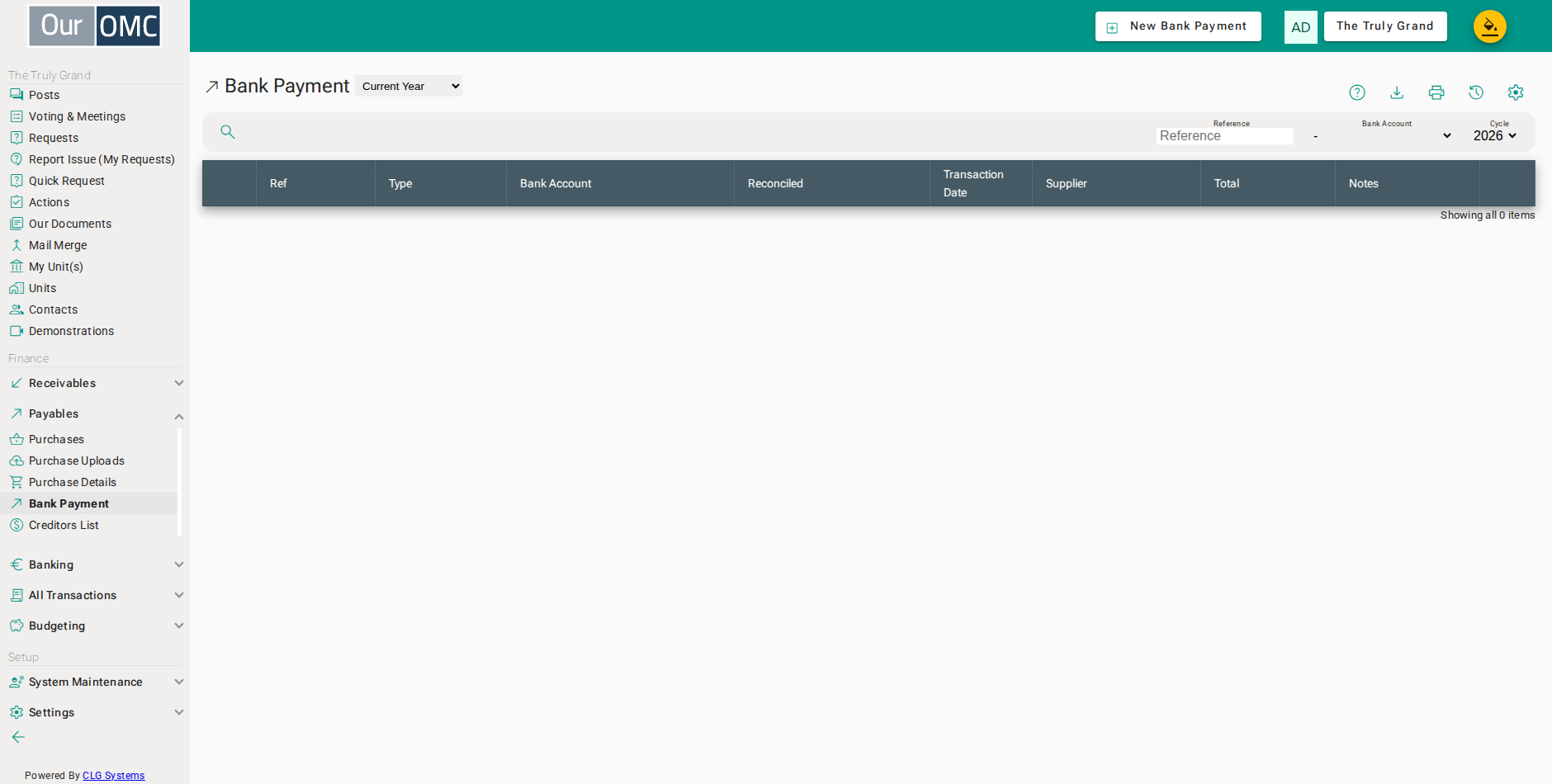
| View | Shows |
|---|---|
| Current Year | Bank payments for the current financial year; change the year filter to view a different year |
| Two Year Comparison | Payments month by month for this calendar year beside the year before |
| Three Year Comparison | Payments month by month for this calendar year beside the two before it |
| Column | Type | Description |
|---|---|---|
| Reference | number | The system reference number for this bank payment transaction. |
| Type | picklist | The transaction type — for example Bank Payment or Payment Allocation. |
| Bank Account | picklist | The bank account this payment was made from. |
| Reconciled | text | Indicates whether this payment has been matched and confirmed in a bank reconciliation. |
| Transaction Date | date | The date this payment was made. |
| Supplier | picklist | The supplier this payment was made to. |
| Total | number | The total amount of this bank payment. |
| Notes | longText | Internal notes about this payment. |
Detail View
Section titled “Detail View”
| Field | Type | Description |
|---|---|---|
| Reference | number | The system reference number for this bank payment transaction. |
| Type | picklist | The transaction type — for example Bank Payment or Payment Allocation. |
| Bank Account | picklist | The bank account this payment was made from. |
| Reconciled | text | Indicates whether this payment has been matched and confirmed in a bank reconciliation. |
| Transaction Date | date | The date this payment was made. |
| Supplier | picklist | The supplier this payment was made to. |
| Total | number | The total amount of this bank payment. |
| Notes | longText | Internal notes about this payment. |
| Purchase Invoice | grid | The purchase invoices allocated against this payment — shows what each payment is settling. |
| Type | picklist | The transaction type of the related invoice or allocation line. |
| Ref | link | Reference number of the related invoice — click to view its detail. |
| Date | date | The date of the related invoice. |
| Supplier | picklist | The supplier on the related invoice. |
| Amount | number | The original amount of the related invoice. |
| Outstanding | number | The amount still outstanding on the related invoice before this payment is applied. |
| Pay now | number | The amount being paid now against this invoice. |
| action | icon | Apply or remove this invoice from the current payment. |
| Notes | longText | Notes for this allocation line. |
| icon | Click to remove item from list |
Paying a supplier
Section titled “Paying a supplier”Choosing the supplier is what does the work. Everything still outstanding for them is listed to be allocated against — invoices they are owed for, and any credit notes that reduce the payment. The tick beside a line pays it in full; the total at the top follows whatever the lines add up to, rather than being typed.
Only approved invoices can be paid. Unapproved ones are still listed, so you can see what is waiting, but they arrive flagged and their amount cannot be entered.
- Click [Payables / Purchases] on the main menu
- Click on the new button to show options
- Select [Bank Payment] from the new options menu
- Choose the bank account the payment is going out of
- Enter the date the money leaves the account
- Choose the supplier - everything outstanding for them is listed to be allocated
- Click the tick to pay this invoice in full - the total at the top follows the lines
- Click save to post the payment
Paying part of an invoice
Section titled “Paying part of an invoice”Typing an amount instead of clicking the tick pays that much and leaves the rest of the invoice outstanding — for a staged job, or an invoice partly in dispute. An invoice cannot be overpaid: an amount larger than the balance is reduced to the balance.
If the payment date is earlier than the date on an invoice being paid, the app asks whether that is really right before it accepts it.
- Click [Payables / Purchases] on the main menu
- Click on the new button to show options
- Select [Bank Payment] from the new options menu
- Choose the bank account the payment is going out of
- Enter the date the money leaves the account
- Choose the supplier
- Type the amount being paid now rather than clicking the tick - the rest of the invoice stays outstanding
- Click save to post the part payment
Available Actions
Section titled “Available Actions”| Action | Description |
|---|---|
Reconciliation Details | View matching reconciliation items |