
Bank Receipts
A receipt is money arriving in an OMC bank account from the members. When a receipt is entered, it is allocated against the unit(s) and charge(s) that it pays for. The entire receipt must be allocated. The process works by first picking up any outstanding credits on the account (e.g. credit notes and overpayments). Then monies are allocated against outstanding charges, starting with the oldest charge outstanding. If the total received is greater than the amount outstanding, the remainder is recorded as an “unallocated receipt” (an overpayment) on that specific unit. It is possible to create a receipt for zero euro in order to force the allocation to happen, allocating credits against invoices so that neither appears as outstanding any more.
Receipts can be entered here or created during bank reconciliation, where a lodgement on the statement with no match in the books can be receipted on the spot.
Apart from members’ payments for their units, the only money usually received is bank interest. Bank interest is not entered on this page. Instead, there are shortcut actions on both the bank account page and the bank reconciliation page that allow you to quickly and easily enter both bank interest received and bank charges.
List View
Section titled “List View”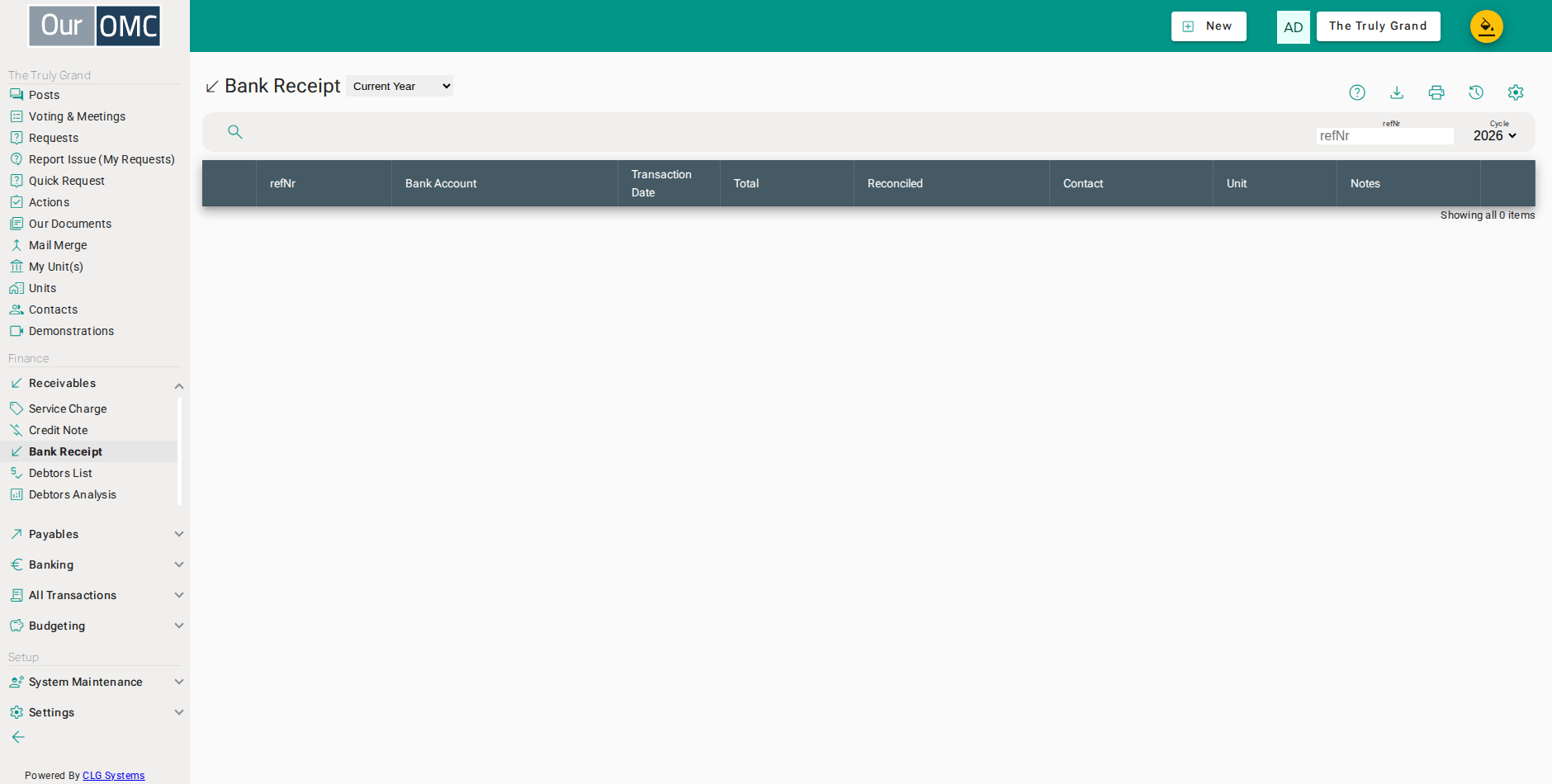
| View | Shows |
|---|---|
| Current Year | Bank receipts for the current financial year; change the year filter to view a different year |
| Two Year Comparison | Receipts month by month for this calendar year beside the year before |
| Three Year Comparison | Receipts month by month for this calendar year beside the two before it |
| Column | Type | Description |
|---|---|---|
| refNr | number | The system reference number for this bank receipt transaction. |
| Bank Account | picklist | The bank account into which this payment was received. |
| Transaction Date | date | The date this receipt was posted. |
| Total | number | The total amount received in this bank receipt. |
| Reconciled | text | Indicates whether this receipt has been matched and confirmed in a bank reconciliation. |
| Contact | picklist | The contact (owner or member) who made this payment. |
| Unit | picklist | The unit this payment relates to, if applicable. |
| Notes | longText | Internal notes about this receipt. |
Detail View
Section titled “Detail View”
| Field | Type | Description |
|---|---|---|
| refNr | number | The system reference number for this bank receipt transaction. |
| Bank Account | picklist | The bank account into which this payment was received. |
| Transaction Date | date | The date this receipt was posted. |
| Total | number | The total amount received in this bank receipt. |
| To be allocated | number | The portion of this receipt not yet allocated to a specific service charge invoice — must reach zero before the receipt is fully applied. |
| Reconciled | text | Indicates whether this receipt has been matched and confirmed in a bank reconciliation. |
| Contact | picklist | The contact (owner or member) who made this payment. |
| Unit | picklist | The unit this payment relates to, if applicable. |
| Notes | longText | Internal notes about this receipt. |
| Allocation | grid | The service charge invoices this receipt is allocated against — shows what each payment is settling. |
| Ref | link | Reference number of the related invoice — click to view its detail. |
| Date | date | The date of the related invoice. |
| Type | picklist | The transaction type of the related invoice. |
| Unit | link | The unit associated with the related invoice. |
| Amount | number | The original amount of the related invoice. |
| Outstanding | number | The amount still outstanding on the related invoice before this receipt is applied. |
| Allocate | number | The amount from this receipt being allocated to this invoice. |
| action | icon | Apply or remove this invoice from the current receipt. |
| Notes | longText | Notes for this allocation line. |
| icon | Click to remove item from list |
Lodging a payment
Section titled “Lodging a payment”A new receipt starts by asking for the date and the amount lodged. Allocate Monies then opens the receipt itself, where you confirm the bank account and say who the money came from. Choosing the unit lists everything that unit still owes and allocates the lodgement straight away: credits first, then the oldest charge, with anything left over going on account. Choosing the contact instead lists everything owed across all the units they hold, which is what an owner of several units paying in one lump needs.
In most cases there is nothing more to do than save. Choosing the unit fills in its owner as the contact, and saving emails them a receipt, which is then logged on the Mailings tab of their contact record.
- Click [Receivables / Bank Receipt] on the main menu
- Click on the new button to show options
- Select [New Bank Receipt] from the new options menu
- Enter the date the money reached the account
- Enter the amount lodged - the receipt cannot be saved until all of it is allocated
- Click Allocate Monies to go on and set the lodgement against what is owed
- Choose the bank account the money was lodged to
- Choose the unit the payment came from - what it owes is listed and allocated straight away
- The lodgement is set against what the unit owes without any clicking - credits first, then the oldest charge, with anything left over on the last line, on account
- Nothing is left to allocate, so the receipt can be saved as it stands
- The unit's owner is filled in as the contact, so they will be emailed a receipt
- Click save to post the receipt
- Confirm saving and emailing the receipt to the owner
- Click [Contacts] on the main menu
- Open the owner's contact record to see the receipt they were sent
- Open the Mailings tab - every email sent to the contact is logged here
- Click on the subject to open a full copy of the mail
- The receipt exactly as the owner received it
Choosing which charge a payment settles
Section titled “Choosing which charge a payment settles”Sometimes an owner tells you what a payment is for, and it is not their oldest charge. The button beside each charge takes the money off a charge, or settles a charge in full. To be allocated shows what is still free, and has to be back at zero before the receipt will save.
- Click [Receivables / Bank Receipt] on the main menu
- Click on the new button to show options
- Select [New Bank Receipt] from the new options menu
- Enter the date the money reached the account
- Enter the amount lodged - the owner has said it is for the summer charge
- Click Allocate Monies to go on and set the lodgement against what is owed
- Choose the bank account the money was lodged to
- Choose the unit the payment came from - the money goes against the oldest charge first
- Click the remove button to take the money back off the older charge
- The whole lodgement is free to allocate again
- Click the tick to settle the charge the owner meant to pay
- The lodgement is fully allocated again, now against the right charge
- Click save to post the receipt
- Confirm saving - the unit has no owner on file, so no receipt is emailed
When more comes in than is owed
Section titled “When more comes in than is owed”An owner paying ahead, or rounding up, leaves money over once their charges are settled. The balance goes on account against the unit, where it waits for the next charge and shows on the owner’s statement as a credit.
- Click [Receivables / Bank Receipt] on the main menu
- Click on the new button to show options
- Select [New Bank Receipt] from the new options menu
- Enter the date the money reached the account
- Enter the full amount lodged, even though it is more than the unit owes
- Click Allocate Monies to go on and set the lodgement against what is owed
- Choose the bank account the money was lodged to
- Choose the unit the payment came from
- The outstanding charge is settled in full
- The balance goes on account against the unit, where it waits for the next charge and shows on the owner's statement as a credit
- The whole lodgement is accounted for
- Click save to post the receipt
- Confirm saving - the unit has no owner on file, so no receipt is emailed
Saving without emailing a receipt
Section titled “Saving without emailing a receipt”Clearing the contact saves the receipt without emailing anybody. The app asks you to confirm, so a receipt is never skipped by accident. It also tells you if the contact you picked has no email address, rather than appearing to send one.
- Click [Receivables / Bank Receipt] on the main menu
- Click on the new button to show options
- Select [New Bank Receipt] from the new options menu
- Enter the date the money reached the account
- Enter the amount lodged
- Click Allocate Monies to go on and set the lodgement against what is owed
- Choose the bank account the money was lodged to
- Choose the unit the payment came from - its owner is filled in as the contact
- Clear the contact so that no receipt is emailed
- The lodgement is fully allocated, so the receipt can be saved
- Click save to post the receipt
- Confirm saving without emailing a receipt - the app asks so a receipt is never skipped by accident
Correcting a receipt
Section titled “Correcting a receipt”The date is the one thing on a posted receipt that can still be changed, which is what is needed when a lodgement was entered into the wrong period. Everything else would change what the money was set against, so that is done by removing the allocation instead.
- Open the receipt that was dated wrongly
- Choose Edit Date to move a receipt into the period it really belongs in
- Enter the date the money actually reached the account
- Click save to move the receipt
Available Actions
Section titled “Available Actions”| Action | Description |
|---|---|
Edit Date | |
Reconciliation Details | View matching reconciliation items |