
My Requests
My Requests is the owner portal page where contacts track every service request they have raised or are following. The page is divided into four tabs so that requests are always easy to find regardless of their current status.
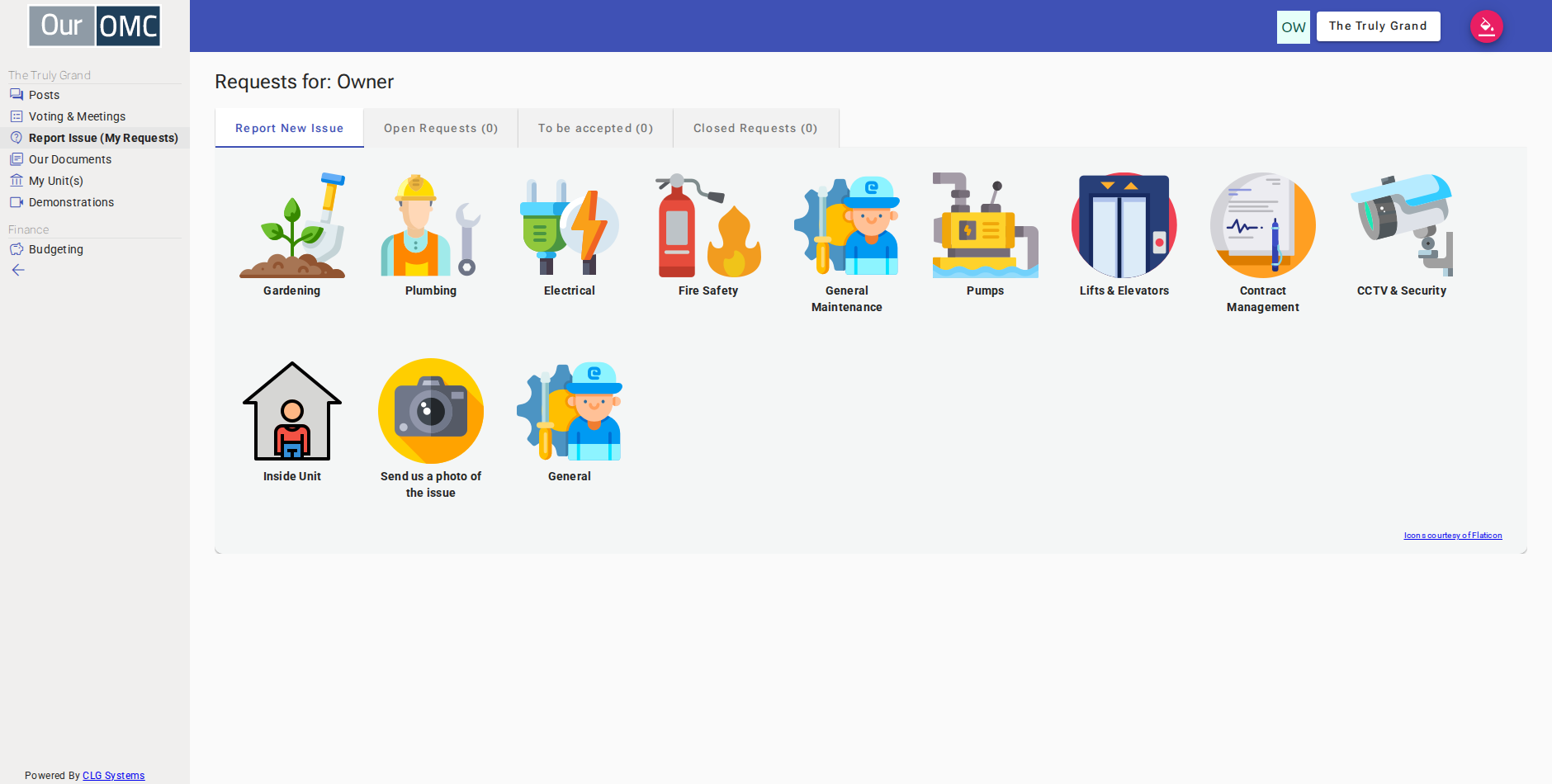
Report New Issue
Section titled “Report New Issue”The default tab when the page loads, showing the request form straight away. Contacts choose the unit the request is about (filled in automatically if they own just one), then give the request a short name and describe what needs doing in their own words before clicking Submit. There is no need to work out who deals with it — the request is read and routed automatically, which can take a few moments after submitting. Photos and files can be attached from the request detail once it has been created.
Open Requests
Section titled “Open Requests”Lists all requests that have been submitted and are still being worked on by the management team. Contacts can click any request reference to open the full detail, add comments, or attach images or files.
To Be Accepted
Section titled “To Be Accepted”Lists requests that the management team has marked as resolved and is waiting on the owner to confirm. The owner can either Accept the request — closing it — or Reopen it if they believe further work is needed. If no action is taken within 7 days the request is automatically closed and can no longer be reopened.
Closed Requests
Section titled “Closed Requests”A read-only history of all requests that have been completed and accepted. Closed requests cannot be reopened.
Request Detail
Section titled “Request Detail”Clicking a request reference opens the full request detail, which shows the reference number, current status, unit, title and description, and any attachments that have been added. The full conversation history between relating to this request is shown. Contacts can add comments or attach new photos from the detail view while the request is open.
Examples
Section titled “Examples”Reporting a New Issue
Section titled “Reporting a New Issue”Describe the problem in your own words and submit a service request to the management team directly from the portal, then attach a photo of the issue.
- Click [Report Issue (My Requests)] on the main menu
- The request form opens straight away — describe the issue in your own words
- Choose the unit the request is about — it is filled in for you if you own a single unit, and can be left blank for common areas
- Enter a short name — think of this like the subject of an email
- Describe what needs to be done so the management team has enough detail to act
- Click Submit to send the request to the management team
- Confirm creating the request
- The request has been submitted — the owner can track its status, add comments, and attach photos from this page
- Click the add attachment button to upload a photo of the issue
- The photo is now attached to the request — the management team can view it when reviewing the request
Accepting a Completed Request
Section titled “Accepting a Completed Request”The owner sees the team’s completion message in the To be accepted tab, then accepts the request to confirm the work is done to their satisfaction.
- Click [Report Issue (My Requests)] on the main menu
- Switch to the "To be accepted" tab to see requests the OMC believes are complete
- The request is shown in the list — click the reference to open the full detail
- The management team has marked the request resolved and left a message — the owner can reopen it if the work is not satisfactory, or accept it to close the request
- Click Accept to confirm the work is complete and close the request
- Confirm accepting the request
- The request has been accepted and is now closed — it will move to the Closed Requests tab and can no longer be reopened