
Purchase Invoices
Everything the OMC is billed for lands here. A purchase document names the supplier, carries their own reference so it can be matched against their statement, and splits the cost across the budget codes the spend belongs to. Nothing is paid until somebody approves it, and what has been approved is what a bank payment can settle.
Purchases are for the common areas and shared services of the development. An OMC is not responsible for what happens inside an individual unit, so work inside a unit is not coded here.
The five kinds of purchase
Section titled “The five kinds of purchase”The new button offers five, and which one you choose depends on two questions: has the money already gone, and has the invoice actually arrived?
| Money owed to the supplier | Money owed back by the supplier | |
|---|---|---|
| The invoice is in front of you | Purchase Invoice | Purchase Credit Note |
| It has already been paid | Cash Purchase | — |
| No invoice yet, but the cost belongs to this period | Purchase Accrual | AP Credit Accrual |
A Purchase Invoice is the ordinary case: the supplier has billed the OMC and has not been paid. It raises a creditor for the full amount and the invoice sits outstanding until it is paid.
A Cash Purchase was paid at the point of purchase — a card payment, a direct debit that has already gone out. It asks which bank account the money left, records the cost and settles it in the same movement, so no creditor is ever raised.
A Purchase Accrual is how a cost is put into the period it belongs to when the invoice has not come. The work was done in November; the invoice turns up in January. Accruing it in November keeps the year’s accounts honest. An accrual needs no invoice document, because there is not one yet.
A Purchase Credit Note is the supplier crediting the OMC — an overcharge, a job not done, a return. It can be set against whatever invoices for that supplier are still open.
An AP Credit Accrual is the accrual’s mirror image: a credit that has been agreed but not yet issued, booked into the period it belongs to.
Accruals of either kind are not available to a VAT-registered OMC.
List View
Section titled “List View”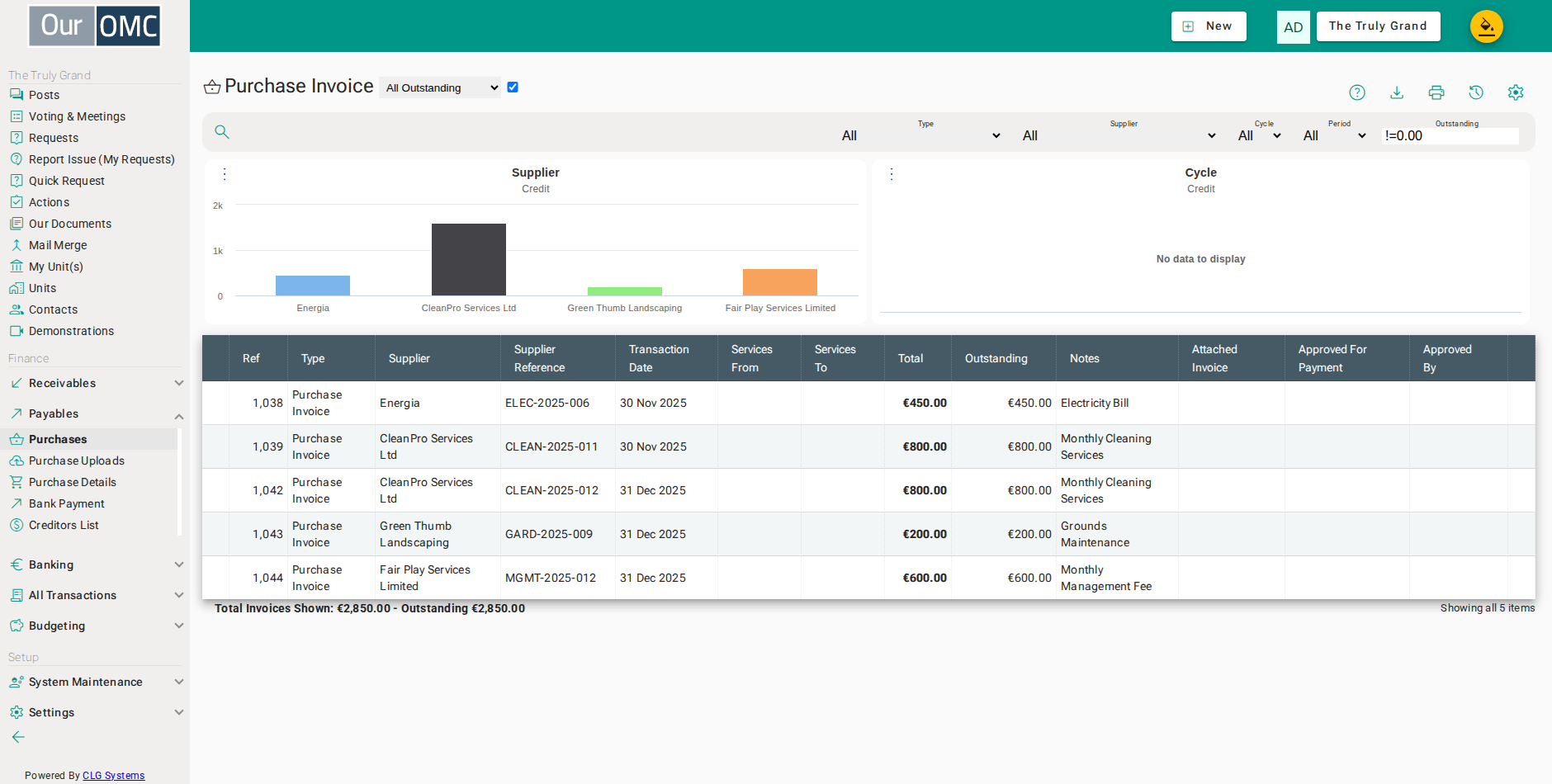
| View | Shows |
|---|---|
| All Outstanding | Purchase invoices with an outstanding balance |
| Invoices for approval | Unpaid invoices awaiting approval |
| Approved Invoices | Approved invoices not yet paid |
| Current Year | Purchase invoices for the current financial year; change the year filter to view a different year |
| Column | Type | Description |
|---|---|---|
| Type | picklist | The transaction type (Invoice, Credit Note, Cash Purchase, etc.). |
| Reference | number | The system reference number for this purchase invoice. |
| Supplier | picklist | The supplier who issued this invoice. |
| Supplier Reference | text | The supplier's own invoice or reference number. |
| Transaction Date | date | The date of this purchase invoice. |
| Services From | date | The start date of the service period covered by this invoice. |
| Services To | date | The end date of the service period covered by this invoice. |
| Total | number | The total invoice amount. |
| Notes | longText | Internal notes about this purchase invoice. |
| Attached Invoice | text | The invoice document attached to this record. |
| Approved For Payment | dateTime | The date and time this invoice was approved for payment. |
| Approved By | text | The team member who approved this invoice for payment. |
| Outstanding | number | The amount still unpaid on this invoice. |
Detail View
Section titled “Detail View”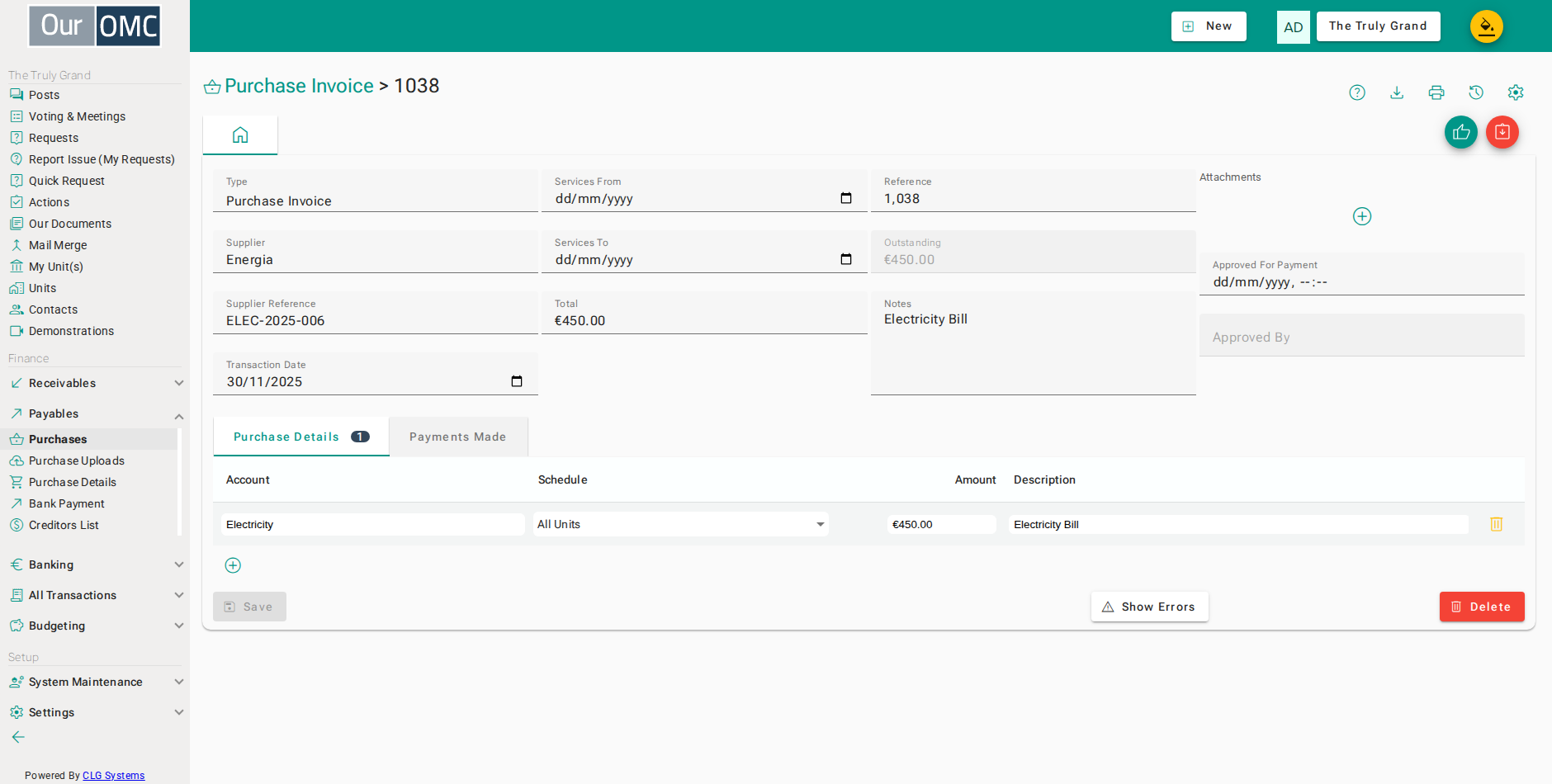
| Field | Type | Description |
|---|---|---|
| Type | picklist | The transaction type (Invoice, Credit Note, Cash Purchase, etc.). |
| Reference | number | The system reference number for this purchase invoice. |
| Supplier | picklist | The supplier who issued this invoice. |
| Supplier Reference | text | The supplier's own invoice or reference number. |
| Transaction Date | date | The date of this purchase invoice. |
| Services From | date | The start date of the service period covered by this invoice. |
| Services To | date | The end date of the service period covered by this invoice. |
| Total | number | The total invoice amount. |
| Notes | longText | Internal notes about this purchase invoice. |
| Work Orders | grid | |
| Attached Invoice | text | The invoice document attached to this record. |
| Attached Files | grid | Manage files attached to this purchase invoice. |
| Approved For Payment | dateTime | The date and time this invoice was approved for payment. |
| Approved By | text | The team member who approved this invoice for payment. |
| Outstanding | number | The amount still unpaid on this invoice. |
| Purchase Details | grid | The expense allocation lines — how the invoice total is distributed across budget codes and schedules. |
| Account | picklist | The expense budget code this line is charged to. |
| Schedule | picklist | The lease schedule this expense is allocated to. |
| Amount | number | The amount allocated to this line. |
| Description | text | Description for this line item. |
| icon | Click to remove item from list | |
| Payments Made | grid | Payments and credits applied against this invoice. |
| Type | picklist | The type of payment or credit transaction. |
| Ref | link | Reference number of the payment transaction. |
| Date | date | Date of the payment. |
| Amount | number | Amount applied. |
| Notes | longText | Notes on this payment. |
| text | Visual spacing column. |
Recording a purchase
Section titled “Recording a purchase”Entering an invoice
Section titled “Entering an invoice”Choose the supplier first — the rest of the form reacts to that choice. Their own reference matters more than it looks: it is what lets you find the document again when the supplier queries their statement. The cost is then split over as many budget code lines as it needs, and the total at the top follows the lines rather than being typed.
Unless the OMC has made attachments optional, an invoice will not save without the supplier’s document attached to it. That is deliberate — it means every creditor on the books can be traced back to the paperwork behind it.
- Click [Payables / Purchases] on the main menu
- Click on the new button to show options
- Select [Purchase Invoice] from the new options menu
- Choose the supplier the document belongs to
- Enter the supplier's own reference for this document, so it can be matched later
- Enter the transaction date - this decides which accounting period the cost lands in
- Click the add button to code the cost to a budget code
- Choose the budget code the cost belongs to
- Enter the amount for this line - the total at the top adds the lines up
- Describe what the line is for, so the cost is recognisable on the budget code later
- Attach the supplier's invoice - an invoice cannot be saved without one unless the OMC has made attachments optional
- Click save to post the document to the ledger
Entering something already paid
Section titled “Entering something already paid”A cash purchase asks one extra question — which bank account the money came out of — and settles itself as it is raised. Nothing is left owing and it will never appear on a payment run.
- Click [Payables / Purchases] on the main menu
- Click on the new button to show options
- Select [Cash Purchase] from the new options menu
- Choose the supplier the document belongs to
- Enter the supplier's own reference for this document, so it can be matched later
- Enter the transaction date - this decides which accounting period the cost lands in
- Choose the bank account the money came out of
- Click the add button to code the cost to a budget code
- Choose the budget code the cost belongs to
- Enter the amount for this line - the total at the top adds the lines up
- Describe what the line is for, so the cost is recognisable on the budget code later
- Attach the supplier's invoice - an invoice cannot be saved without one unless the OMC has made attachments optional
- Click save to post the document to the ledger
Accruals
Section titled “Accruals”Raising an accrual
Section titled “Raising an accrual”An accrual books the cost now and waits for the invoice. It shows as outstanding against the supplier so it is visible as something still to come, and because there is no invoice yet, there is no document to attach.
- Click [Payables / Purchases] on the main menu
- Click on the new button to show options
- Select [Purchase Accrual] from the new options menu
- Choose the supplier the document belongs to
- Enter the supplier's own reference for this document, so it can be matched later
- Enter the transaction date - this decides which accounting period the cost lands in
- Click the add button to code the cost to a budget code
- Choose the budget code the cost belongs to
- Enter the amount for this line - the total at the top adds the lines up
- Describe what the line is for, so the cost is recognisable on the budget code later
- Click save to post the document to the ledger
When the invoice finally arrives
Section titled “When the invoice finally arrives”This is the part that does itself. Choosing a supplier who has anything still accrued makes the form stop and ask whether the invoice being entered is the one the accrual was for. Say yes and the invoice is given a reversal line that writes the accrual off, so the cost is counted once rather than twice.
If the invoice is for a different job entirely, cancel — the accrual is left alone and waits for its own invoice. If the invoice came in higher or lower than the accrual, enter the real amounts on the cost lines; only reduce the amount written down if you are expecting a further invoice against the same accrual.
- Click [Payables / Purchases] on the main menu
- Click on the new button to show options
- Select [Purchase Invoice] from the new options menu
- Choose the supplier - the form checks straight away whether anything is accrued for them
- The accrual is listed with the amount it will be written down by, already filled in for the full balance
- Click Reverse - the invoice will carry a line that writes the accrual off
- Enter the supplier's invoice number
- Enter the invoice date
- The reversal line was added for you and cannot be edited - it is what clears the accrual, so the cost is not counted twice
- Attach the supplier's invoice
- Click save - the invoice is posted and the accrual is written down
Accruing a credit
Section titled “Accruing a credit”An AP Credit Accrual works the same way in the opposite direction, and is written down by the credit note when it eventually arrives.
- Click [Payables / Purchases] on the main menu
- Click on the new button to show options
- Select [AP Credit Accrual] from the new options menu
- Choose the supplier the document belongs to
- Enter the supplier's own reference for this document, so it can be matched later
- Enter the transaction date - this decides which accounting period the cost lands in
- Click the add button to code the cost to a budget code
- Choose the budget code the cost belongs to
- Enter the amount for this line - the total at the top adds the lines up
- Describe what the line is for, so the cost is recognisable on the budget code later
- Click save to post the document to the ledger
Credit notes
Section titled “Credit notes”Raising a credit note
Section titled “Raising a credit note”Saving a credit note that has not been spent goes straight on to ask what it should be set against, rather than leaving it on the supplier’s account to be found later. Every invoice still open for that supplier is listed with what it owes, and you decide how much of the credit goes where. It can be over as many invoices as it takes, and it refuses to allocate more than the credit is worth.
- Click [Payables / Purchases] on the main menu
- Click on the new button to show options
- Select [Purchase Credit Note] from the new options menu
- Choose the supplier the document belongs to
- Enter the supplier's own reference for this document, so it can be matched later
- Enter the transaction date - this decides which accounting period the cost lands in
- Click the add button to code the cost to a budget code
- Choose the budget code the cost belongs to
- Enter the amount for this line - the total at the top adds the lines up
- Describe what the line is for, so the cost is recognisable on the budget code later
- Attach the supplier's invoice - an invoice cannot be saved without one unless the OMC has made attachments optional
- Click save to post the document to the ledger
- Click the tick to set the whole credit against this invoice
- Click Save Allocations to apply the credit
Allocating a credit later
Section titled “Allocating a credit later”A credit that was left unallocated — or one only partly used — can be allocated at any time from the credit note itself, using the same dialog.
An allocation is not final. Opening a purchase invoice shows what has been applied to it, and an allocation can be removed there: the invoice goes back to owing that amount and the credit becomes available to use somewhere else.
- Click [Payables / Purchases] on the main menu
- Open the credit note that still has a balance to use
- Choose Allocate Credit To Invoices to decide what the credit is set against
- Click the tick to allocate as much of the credit as this invoice can take
- Click Save Allocations
Reversing an invoice outright
Section titled “Reversing an invoice outright”When an invoice should not have been entered at all, Credit Invoice raises the matching credit note for you, already carrying the supplier, the reference and every cost line from the invoice it reverses, and allocates itself against it. You only supply the date.
It is offered only while nothing has been paid against the invoice. Once it is part paid the credit has to be raised and allocated by hand instead.
- Click [Payables / Purchases] on the main menu
- Open the invoice that should not have been posted
- Choose Credit Invoice to reverse the whole invoice out
- Confirm that a credit note should be raised against it
- Enter the date the credit belongs to - everything else is already filled in from the invoice being reversed
- Attach the supplier's credit note - like an invoice, it cannot be saved without one unless the OMC has made attachments optional
- Click save to post the credit note
Approving invoices for payment
Section titled “Approving invoices for payment”Nothing is paid on the say-so of whoever entered it. An invoice has to be approved before a payment run will offer it, and who approved it and when is kept on the invoice itself. An unapproved invoice still appears when a payment is being prepared, but it is flagged and its amount cannot be typed in.
Approval can be withdrawn again — useful when an invoice that was cleared for payment turns out to be in dispute.
- Click [Payables / Purchases] on the main menu
- Open the invoice that is ready to be paid
- Choose Approve to authorise the invoice for payment
- Confirm the approval - who approved it and when is kept against the invoice
- The invoice now records who approved it, and will appear on a payment run
- Click [Payables / Purchases] on the main menu
- Open the invoice whose approval needs withdrawing
- Choose Remove Approval when an approved invoice turns out to be in dispute
- Confirm withdrawing the approval - it can no longer be picked up by a payment
Available Actions
Section titled “Available Actions”| Action | Description |
|---|---|
Approve | |
Remove Approval | |
Credit Invoice | |
Allocate Credit To Invoices |
Where purchases come from
Section titled “Where purchases come from”Most are entered here, but not all:
- The purchase inbox holds documents that arrived by email. Invoicing one from there opens this same form with the document already attached.
- Bank reconciliation can raise a cash purchase directly from an unmatched payment on the bank statement.
Work orders settled by this purchase
Section titled “Work orders settled by this purchase”When work is ordered from a supplier the OMC raises a work order for it, and that work order waits on the request side to be told the charge arrived. The Work Orders panel is where the two meet: one document can settle several work orders, and one work order can take several documents. Accruals carry the panel too — an accrual prices the work just as an invoice does.
Choosing a supplier who has work orders waiting offers them to you there and then, unasked. You can also link one at any time with the Link Work Order button. Only that supplier’s own work orders are offered — an invoice from one supplier cannot be settling another’s work — and each is listed with its status, so you can see whether the work has been resolved yet.
Linking one asks what it means:
| Answer | What it does |
|---|---|
| Link & Accept Work Order | Links the document and accepts the work order — this is the charge for that work. A work order still open is closed as complete at the same time. |
| Link Only | Links the document and leaves the work order where it is. |
| Cancel | Nothing is linked. |
Link & Accept Work Order is the normal answer, for an accrual as much as an invoice: the work has been priced and is in the accounts, which is what Accepted means. Use Link Only where this document settles part of the work and more is still to be charged.
- Click [Payables / Purchases] on the main menu
- Click on the new button to show options
- Select [Purchase Invoice] from the new options menu
- Choose the supplier - their work orders still waiting for a charge are offered straight away
- Click the work order this invoice is paying for - the status shows how far it has got
- Choose Link & Accept Work Order - being invoiced is what accepts a work order
- Enter the supplier's own invoice number
- Enter the invoice date
- Click the add button to code the cost to a budget code
- Choose the budget code the cost belongs to
- Enter the amount the supplier has charged
- Describe what the line is for
- Attach the supplier's invoice
- Click save - the invoice is posted and the work order accepted with it
The link is written as soon as you answer it on a saved document, and with the document itself if you are still entering it — cancel the entry and nothing is linked or accepted.
- Click [Payables / Purchases] on the main menu
- Open the invoice that turns out to cover a second job
- Click Link Work Order to link another job to this invoice
- Click the second work order
- Choose Link Only - the making good is still to be billed, so this invoice does not settle that work order
Unlinking leaves the work order’s status alone: if it was accepted, it stays accepted. Nothing about the money changes either, so a document linked to the wrong work order should be unlinked and linked to the right one.