
Service Charge Invoices
A service charge is raised against a unit, not against a person — it follows the property, and whoever owns the unit at the time is who it is addressed to. Each charge carries the period it covers and is split into lines, each under the schedule it is levied through, so the income lands on the right budget code.
Most charges are produced in bulk by a billing run. The ones raised here by hand are the exceptions: a charge for a unit that came into the development mid-cycle, a one-off levy, a correction that is cleaner to re-raise than to credit.
List View
Section titled “List View”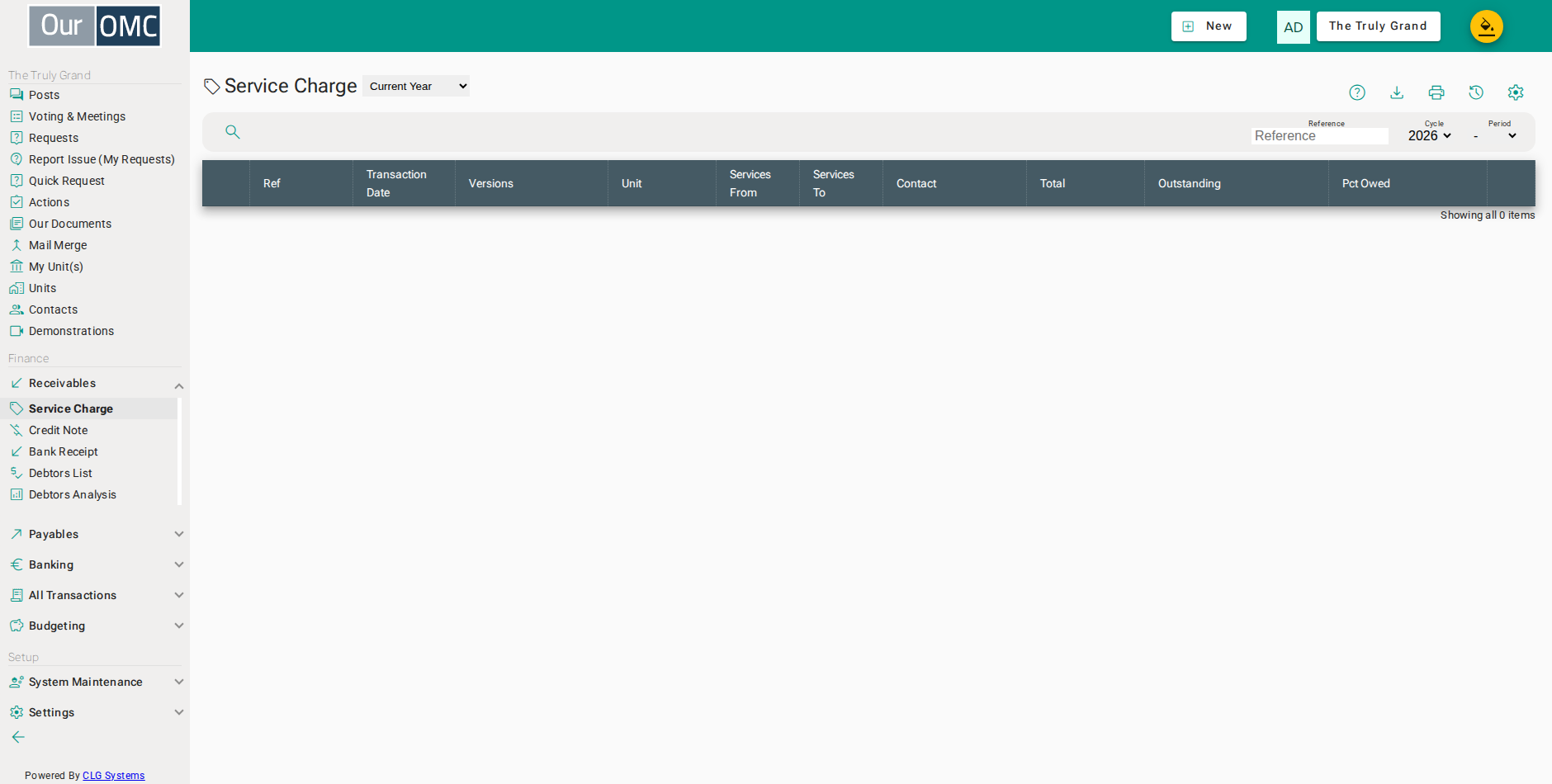
| View | Shows |
|---|---|
| Current Year | Service charge invoices for the current financial year; change the year filter to view a different year |
| Outstanding | Invoices with an outstanding balance |
| Column | Type | Description |
|---|---|---|
| Reference | number | The system reference number for this service charge invoice. |
| Transaction Date | date | The date this service charge invoice was issued. |
| Versions | number | The version number — service charge invoices may be revised to correct errors. |
| Unit | link | The name of the unit this invoice relates to. |
| Services From | date | The start of the service period this charge covers. |
| Services To | date | The end of the service period this charge covers. |
| Contact | link | The contact (owner or member) responsible for this invoice. |
| Total | number | The total amount charged on this invoice. |
| Outstanding | number | The amount still unpaid on this invoice. |
| Pct Owed | number | The percentage of the charge that remains outstanding. |
Detail View
Section titled “Detail View”
| Field | Type | Description |
|---|---|---|
| Reference | number | The system reference number for this service charge invoice. |
| Transaction Date | date | The date this service charge invoice was issued. |
| Versions | number | The version number — service charge invoices may be revised to correct errors. |
| Unit | picklist | The unit this service charge invoice was issued to. |
| Services From | date | The start of the service period this charge covers. |
| Services To | date | The end of the service period this charge covers. |
| Contact | link | The contact (owner or member) responsible for this invoice. |
| Address | longText | The postal address used for this invoice. |
| Total | number | The total amount charged on this invoice. |
| Outstanding | number | The amount still unpaid on this invoice. |
| Notes | longText | Internal notes about this service charge invoice. |
| Pct Owed | number | The percentage of the charge that remains outstanding. |
| Charge Details | grid | The individual charge lines — how the invoice total is broken down across budget codes and schedules. |
| Schedule | picklist | The lease schedule this charge line belongs to. |
| Account | picklist | The income budget code for this charge line. |
| Amount | number | The amount charged for this line. |
| Notes | longText | Notes for this charge line. |
| icon | Click to remove item from list | |
| Payments Received | grid | Payments received against this invoice. |
| Ref | link | Reference number of the payment transaction. |
| Date | date | Date the payment was received. |
| Amount | number | Amount paid. |
| Notes | longText | Notes on this payment. |
| icon | Click to remove item from list |
Raising a charge
Section titled “Raising a charge”Choose the unit and set the dates the charge covers. A new charge opens with a line for each schedule, with its income code already filled in, so for most charges you only enter the amount. Every line needs an account — see Penalty Charges for charging a line to an income code other than the schedule’s own.
There are two kinds of note on a charge and they go to different places. The note on a line describes that line on the charge itself. The note on the charge is the one the owner reads — it appears on the charge and on their statement, so it is where a payment instruction or an explanation belongs.
- Click [Receivables / Service Charge] on the main menu
- Click on the new button to show options
- Select [New Service Charge] from the new options menu
- Choose the unit the charge is raised against - the owner on the unit is who it is addressed to
- Enter the charge date - this decides which accounting period it falls in
- Enter the first day of the period the charge covers
- Enter the last day of the period the charge covers
- A new charge starts with a line for each schedule, with the schedule and its income code already filled in
- Enter the amount being charged on this line
- Describe the line - this shows on the charge itself, not on the statement
- Add a comment for the owner - this one does appear on the statement and the charge
- Click save to raise the charge
Getting the charge to the owner
Section titled “Getting the charge to the owner”Changing the wording
Section titled “Changing the wording”Editing the comments changes what the owner sees, which means the PDF already produced no longer matches. The app offers to rebuild it and then to send the rebuilt copy on, so the three steps that have to happen together are one action rather than three things to remember.
- Click [Receivables / Service Charge] on the main menu
- Open the charge whose wording needs changing
- Choose Edit Comments to change the wording that appears on the charge and statement
- Reword the comment
- Click save to store the new wording
- Confirm rebuilding the PDF so the owner's copy matches the new wording
- Close without sending - the owner can be emailed later from the same charge
Rebuilding the PDF on its own
Section titled “Rebuilding the PDF on its own”A charge’s PDF is addressed to whoever owned the unit when it was produced. When ownership transfers, or an owner’s details are corrected, regenerating the PDF reissues it to the current owner. The dialog names who the rebuilt copy will be addressed to before you commit to it.
- Click [Receivables / Service Charge] on the main menu
- Open the charge whose PDF needs rebuilding
- Choose Regenerate PDF after the unit owner has changed, so the copy on file is addressed to the right contact
- Confirm - the dialog names the owner the rebuilt copy will be addressed to
Emailing it out
Section titled “Emailing it out”A charge can be emailed to any owner of the unit — a jointly owned unit lists each of them, so you choose who receives it. An owner with no email address cannot be sent one, and the app says so rather than failing quietly. What was sent, and when, is kept on the Mailings tab.
- Click [Receivables / Service Charge] on the main menu
- Open the charge that needs sending to the owner
- Choose Mail PDF to Unit Owner to send the charge out
- Choose which owner of the unit to send it to - a jointly owned unit lists each of them
- Click Send to email the charge
Available Actions
Section titled “Available Actions”| Action | Description |
|---|---|
Edit Comments | |
Mail PDF to Unit Owner | |
Regenerate PDF |
Related Tabs
Section titled “Related Tabs”| Main | Shows the main form fields as described above | |
| Attached Files | Files attached to this service charge invoice. | |
| Mailings | Emails sent in relation to this service charge invoice. |
Attached Files
Files attached to this service charge invoice.
Mailings
Emails sent in relation to this service charge invoice.
| Field | Type | Description |
|---|---|---|
| From | text | The sender email address. |
| To | text | The recipient email address. |
| Class | text | The type or class of this email. |
| Subject | link | The email subject line. |
| Sent | dateTime | The date and time this email was sent. |
| Size | text | The size of the email message. |
| Status | number | The HTTP response code from the mail server. |
| Attached | link | Number of files attached to this email. |
| Status Text | picklist | The delivery status of this email. |