
Ballots
Ballots run formal electronic votes with OMC members — AGM resolutions, special-levy approvals, or any decision that needs a recorded member vote. A ballot is published to a channel, which (together with the optional area, core, type and category filters) decides who is eligible to vote — the same visibility model as posts.
This page covers how a manager builds and runs a ballot. For how members vote and how the rules work (one-unit-one-vote, joint ownership, advisory status), see the owner and resident view of ballots.
Meeting times vs voting windows
Section titled “Meeting times vs voting windows”A ballot has a Meeting Start and Meeting End. These are informational — they are included in the notification email so members know when the meeting is, but they do not control voting. Each question then has its own voting open/close window, and that is what decides when a vote can be cast. New questions inherit the meeting times by default.
Many OMCs open voting on every question as soon as the ballot is created, so members can vote any time before the meeting (a digital alternative to proxy forms). Others prefer members to hear the discussion first and open each question during the meeting. Note that once a question’s voting is open it can no longer be edited — only its times can be changed.
List View
Section titled “List View”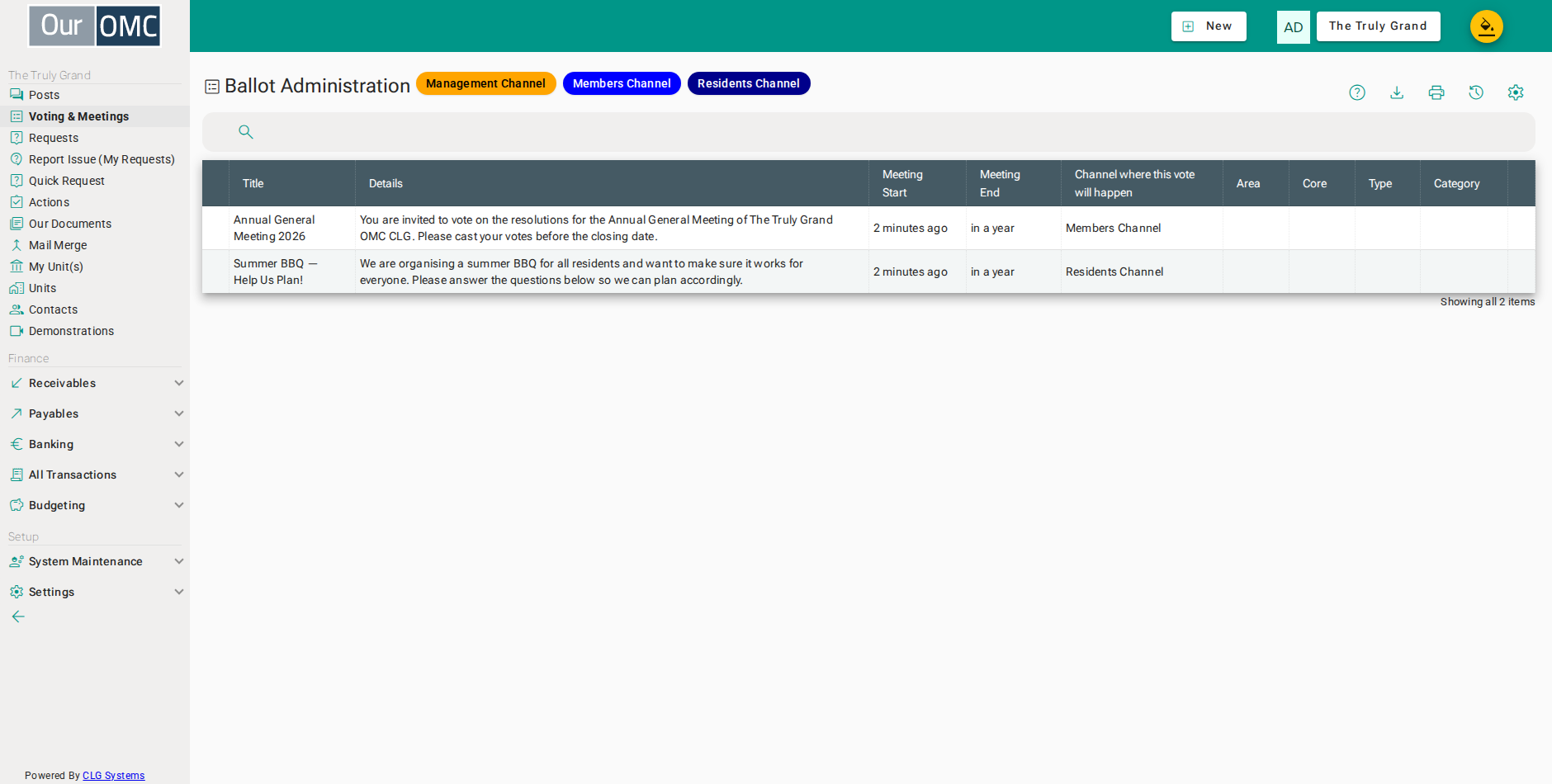
| Column | Type | Description |
|---|---|---|
| Title | text | The title or question being voted on. |
| Details | richText | Full text and details of the ballot, including the motion and any supporting information members need to vote. |
| Meeting Start | dateTime | Date and time when voting opens. |
| Meeting End | dateTime | Date and time when voting closes. |
| Channel where this vote will happen | picklist | The channel where this ballot will appear. Members must have access to this channel to vote. |
| Area | text | Restrict this ballot to members in a specific area of the development. |
| Core | text | Restrict this ballot to members in a specific core or stairwell. |
| Type | text | Restrict this ballot to members with a specific unit type (e.g. Apartment only). |
| Category | text | Restrict this ballot to members with a specific unit category (e.g. 2 Bed only). |
Detail View
Section titled “Detail View”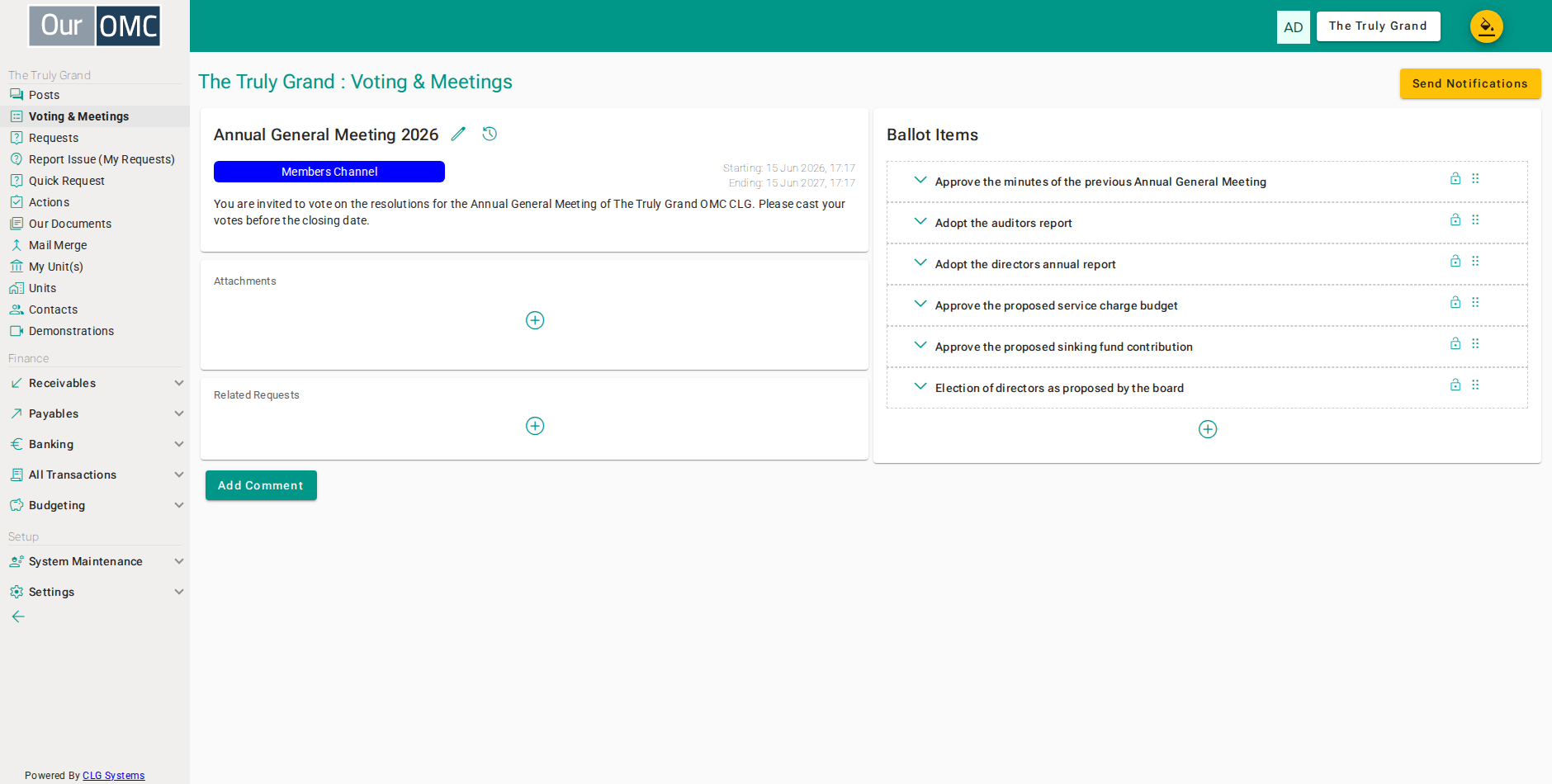
| Field | Type | Description |
|---|---|---|
| Title | text | The title or question being voted on. |
| Details | richText | Full text and details of the ballot, including the motion and any supporting information members need to vote. |
| Meeting Start | dateTime | Date and time when voting opens. |
| Meeting End | dateTime | Date and time when voting closes. |
| Channel where this vote will happen | picklist | The channel where this ballot will appear. Members must have access to this channel to vote. |
| Area | text | Restrict this ballot to members in a specific area of the development. |
| Core | text | Restrict this ballot to members in a specific core or stairwell. |
| Type | text | Restrict this ballot to members with a specific unit type (e.g. Apartment only). |
| Category | text | Restrict this ballot to members with a specific unit category (e.g. 2 Bed only). |
Question controls
Section titled “Question controls”When you open a question with edit rights, a row of controls appears. Some only show in the right state — for example Open voting only before voting starts, and Close voting only while it is open.
| Control | Action | Notes |
|---|---|---|
| poll | Show votes cast | Who voted, what they chose, and how many times they changed it. |
| start | Open voting | Starts voting now. Only shown before voting has opened. |
| cancel_presentation | Close voting | Ends voting now. Only shown while voting is open. |
| edit | Edit question | Change the question, options and details. Disabled once voting opens. |
| timer | Change times | Adjust the voting open/close window. |
| history | Show history | The change log for the question. |
| delete | Delete question | Removes the question, its options, attachments and votes. |
| drag_indicator | Reorder | Drag a closed question by its handle to change the order. |
Attachments
Section titled “Attachments”Files can be attached to the ballot and to individual questions. Ballot attachments are always visible on the ballot page; a question’s attachments only appear when that question is expanded.
Comments
Section titled “Comments”Ballots can carry comments where the channel allows it — useful in the Directors Channel for agreeing arrangements. See the comments guide for how comments, following and moderation work.
Examples
Section titled “Examples”Creating a ballot
Section titled “Creating a ballot”Create a ballot in a channel, set the meeting times, and write the introduction. Questions are added in the same flow — each with voting options, an optional proposer and seconder, and a voting window. New questions inherit the meeting times by default; adjust them if you need a different window per question.
- Click [Voting & Meetings] on the main menu
- Click on the new button to show options
- Select [New Ballot] from the new options menu
- Enter a title for the ballot
- Choose a channel to define who is eligible to vote
- Set the meeting start — included in the notification email
- Set the meeting end
- Write the introduction shown to members
- Click Next to see the summary of the meeting
- Click the add question button to add the first question
- Enter the question text
- Add notes visible to voters
- Rename the Yes option to describe the repair
- Add a description for the repair option
- Rename the No option to describe the replacement
- Add a description for the replacement option
- Remove the Abstain option — voters must choose one
- Click Next to return to the summary
- Click the add question button to add a second question
- Enter the second question text
- Add notes about the gate replacement option
- Remove the Abstain option — keep simple Yes / No for this question
- Click Next to review both questions on the summary
- Click the create ballot button to save the ballot and its questions
Editing a question
Section titled “Editing a question”Edit a question’s text, options or notes at any time before voting opens. Once the first vote is cast, use Change times instead.
- Click [Voting & Meetings] on the main menu
- Open the ballot to edit a question
- Expand the first question to reveal its controls
- Open the question editor — only available before voting has been opened
- Refine the question notes before voting opens
- Save the updated question
Changing voting times
Section titled “Changing voting times”Adjust a question’s voting window without editing the question itself — useful when voting is already open.
- Click [Voting & Meetings] on the main menu
- Open the ballot to adjust voting times
- Expand the first question to reveal its controls
- Adjust the voting window without editing the question itself
- Bring the voting start forward by a day
- Save the new voting window
Opening and closing voting
Section titled “Opening and closing voting”Open voting on a question so contacts can vote, and close it again when the vote is complete.
- Click [Voting & Meetings] on the main menu
- Open the ballot to start voting
- Expand the first question to reveal its controls
- Open voting so contacts can cast their votes any time before the meeting
- Confirm — voting is now open on this question
- Click [Voting & Meetings] on the main menu
- Open the ballot to close voting
- Expand the first question to reveal its controls
- Close voting when the discussion is complete — the result is then final
- Confirm — voting is now closed on this question
Seeing who voted
Section titled “Seeing who voted”Use the Votes Cast control to see exactly who voted and what they chose.
- Click [Voting & Meetings] on the main menu
- Open the ballot to check votes
- Expand the first question to reveal its controls
- Open the votes cast list to see exactly who voted and what they chose
Deleting a question
Section titled “Deleting a question”Remove a question from the ballot. This also removes all its options, attachments and any votes already cast on it.
- Click [Voting & Meetings] on the main menu
- Open the ballot to delete a question
- Expand the second question to reveal its controls
- Delete the second question — removes the question, its options, attachments and votes
- Confirm deletion of the question
Reordering questions
Section titled “Reordering questions”Drag a question by its handle to change the order questions are presented to voters. The drag handle only appears when the question is collapsed — if you have a question expanded, close it first, then grab the handle icon in the header and drag the question to its new position.
- Click [Voting & Meetings] on the main menu
- Open the ballot to reorder its questions
- Hover over the drag handle icon in the question header — the handle only appears when the question is collapsed
- Drag the question down to reorder it — drop it onto the question below to swap their positions
- The new question order is saved — a confirmation appears at the top of the screen
Attaching files
Section titled “Attaching files”Attach a file to the ballot — useful for sharing quotes or supporting documents with voters.
- Click [Voting & Meetings] on the main menu
- Open the ballot to attach a supporting document
- Attach the repair quotation to the ballot so members can review costs before voting
Notifying contacts
Section titled “Notifying contacts”Send the invitation email with a copy of the ballot to every contact eligible to vote.
- Click [Voting & Meetings] on the main menu
- Open the ballot to send notifications
- Send the notification email with the ballot to all contacts eligible to vote
- Confirm — emails are queued for delivery
Note on “Public” channels
Section titled “Note on “Public” channels”Ballots are not offered for public channels. Ballots are only offered for identified users with a role in the OMC, so that entitlement to vote can be verified, public voting is not supported, or recommended