
Communication Templates
Communication Templates store standard blocks of text which can be used to create posts, ballots, documents, bulk personalised messages, individual emails, or provide standard reasons to close service requests. This allows you to standardise your communications and significantly increases your efficiency.
List View
Section titled “List View”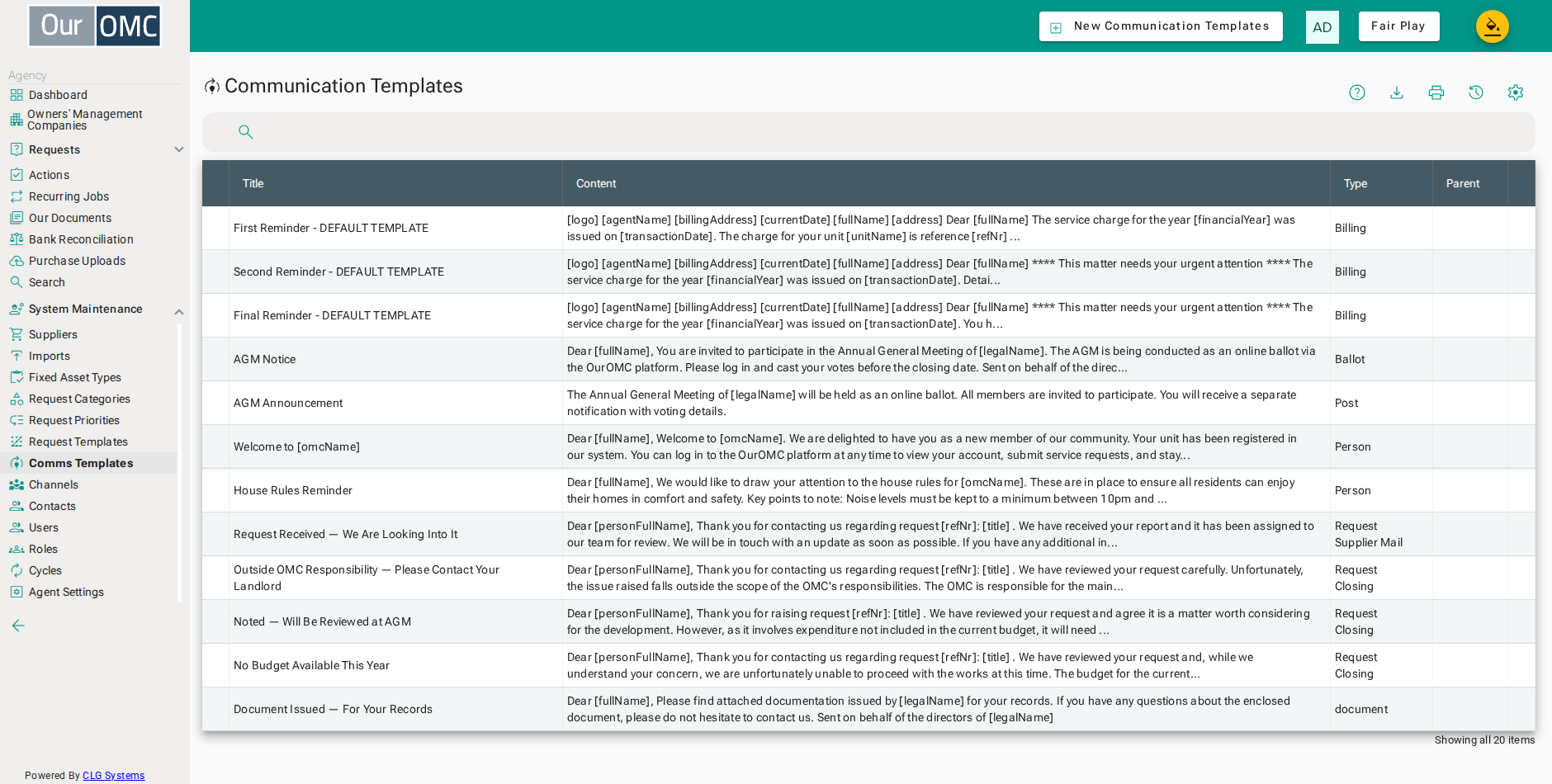
| Column | Type | Description |
|---|---|---|
| Title | text | The name of this communication template. |
| Type | picklist | The type of communication this template is used for (e.g. email, letter, notice). |
| Parent | picklist | The parent template this is a variant of, if applicable. |
| Content | richText | The body content of this template — used as the default text when sending communications. |
Detail View
Section titled “Detail View”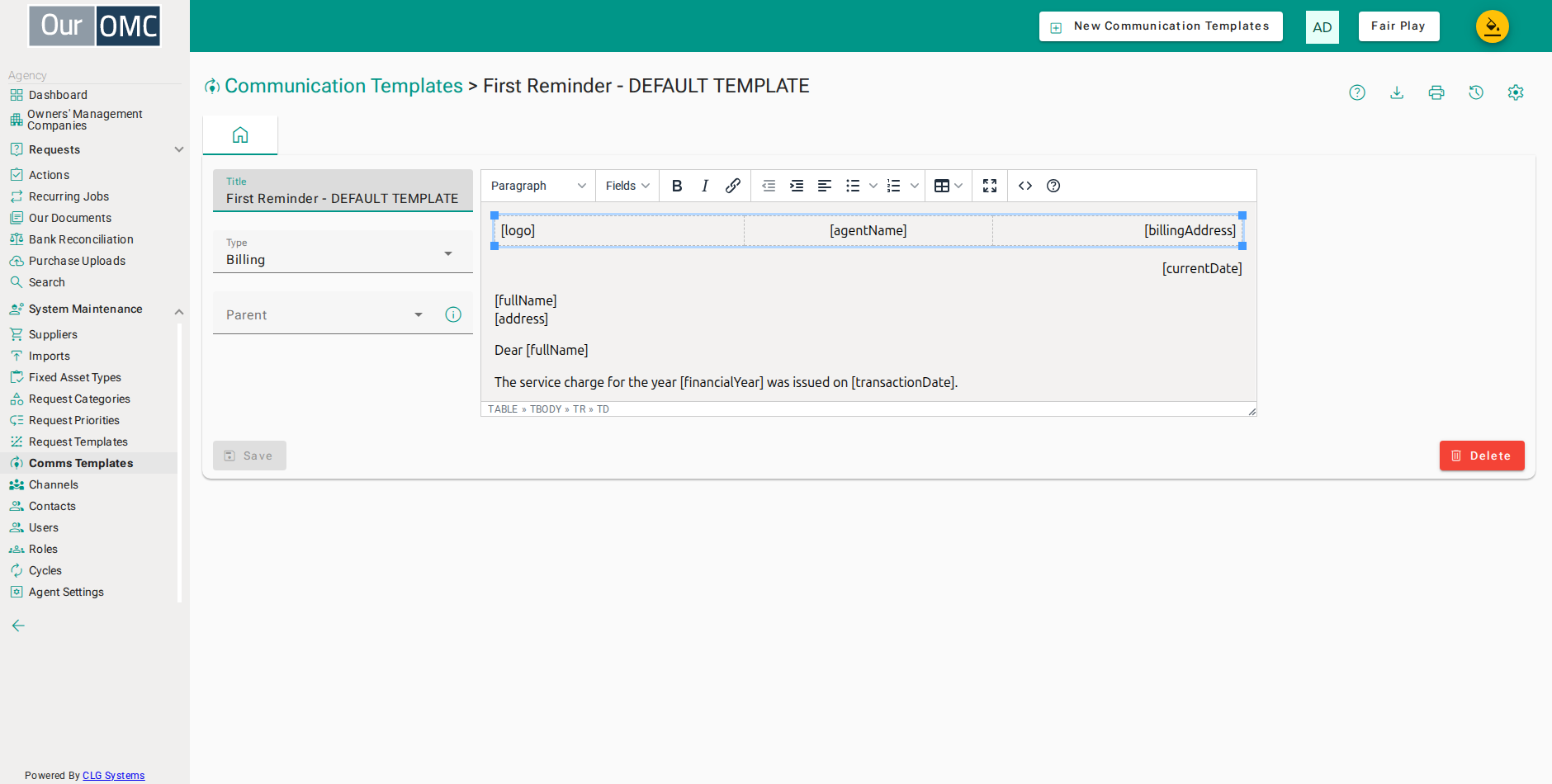
| Field | Type | Description |
|---|---|---|
| Title | text | The name of this communication template. |
| Type | picklist | The type of communication this template is used for (e.g. email, letter, notice). |
| Description | longText | Readonly field to describe what this type of template is used for. |
| Parent | picklist | The parent template this is a variant of, if applicable. |
| Content | richText | The body content of this template — used as the default text when sending communications. |
Placeholders
Section titled “Placeholders”A template’s content can include placeholders in square brackets — [fullName], [address],
[outstanding] and so on — which are replaced with real data when the template is used. Which
placeholders are available depends on the template’s type:
- Person —
fullName,address,unitName,outstanding - Request —
refNr,title,description,priority,owner,unitName,unitAddress,personFullName,personPhone - Billing —
fullName,address,transactionDate,financialYear,unitName,refNr,debit,outstanding,unitBalance
Every type also has access to a common set of OMC/agent placeholders: currentDate, paymentTerms,
legalName, logo, omcName, omcEmailAddress, agentName, agentLegalName, billingAddress.
Once a type is chosen (for types that support it), an OMC and a sample record can be picked, and Preview shows the template merged with that real record’s data — a quick way to check every placeholder resolves correctly before the template is used for real.
- Click [System Maintenance / Comms Templates] on the main menu
- Open the [Arrears Reminder] template
- Choose the OMC to draw a sample record from
- Click to choose a sample contact
- Choose Murphy (Owner) as the sample record
- Click Preview to see the merged content for this sample
- The preview opens showing the merged mail exactly as it would be sent - every placeholder resolved, nothing sent or saved
- Click [System Maintenance / Comms Templates] on the main menu
- Open the [Detailed Request Update] template
- Choose the OMC to draw a sample record from
- Click to choose a sample request
- Choose Water leak in car park ceiling as the sample record
- Click Preview to see the merged content for this sample
- The preview opens showing the merged mail exactly as it would be sent - every placeholder resolved, nothing sent or saved
- Click [System Maintenance / Comms Templates] on the main menu
- Open the [Detailed Invoice Notice] template
- Choose the OMC to draw a sample record from
- Click to choose a sample invoice
- Choose TGO01 as the sample record
- Click Preview to see the merged content for this sample
- The preview opens showing the merged mail exactly as it would be sent - every placeholder resolved, nothing sent or saved