
How Requests Work
Requests are the things an OMC needs done — maintenance jobs, queries from contacts, tasks raised in meetings. No matter how a request comes in, it follows the same lifecycle and is tracked in the same place.
Cases and Work Orders
Section titled “Cases and Work Orders”Every request is one of two kinds, and which one it is says which direction the work is travelling.
A case tracks an incoming request to the OMC — from an owner, a resident, a director or anyone else who wants the OMC to answer a question or do something for them. The case and all communication with the person who raised it are tracked together. The lobby light is flickering, a fob has stopped working, an owner has a question about their service charge: all of these are cases.
A work order tracks an outgoing request from the OMC to a supplier or contractor, and every communication within that. It names the supplier, records what the work is expected to cost against one or more budget codes, and carries the instruction that is emailed out.
The two work together. A case comes in to say “The automated gate is broken”, and a work order goes out to the preferred supplier to say “Please fix the broken gate” — see child requests.
The golden rule: work orders are linked to suppliers, cases are not. If you do not know who the supplier will be yet, then that is a case to decide on the supplier, to which you can easily add a work order once the supplier is decided.
How Requests Are Created
Section titled “How Requests Are Created”- Managers can create requests directly through the UI
- Directors, owners and contacts can log in to omcCommunity and raise requests themselves
- Email — every OMC has its own email address, and any email received at that address automatically becomes a request. The sender is added as a follower and receives an acknowledgement with the reference number.
- Ballots & Meetings — requests can be created during AGMs and directors meetings
Simple Request Flow
Section titled “Simple Request Flow”For straightforward requests that can be resolved immediately, the flow is short:

- Open — the request arrives and is visible to the assigned agent
- Resolved — the agent provides the answer or completes the work and closes the request. All followers are notified automatically.
- Accepted — the requester reviews the resolution and accepts it. Once accepted, the request is fully closed and cannot be reopened.
If the requester does not respond within 7 days, the request is automatically accepted.
Requests and Actions
Section titled “Requests and Actions”Most requests require more than one step. Actions let you plan and track the work needed to close a request without losing visibility of what still needs to happen.
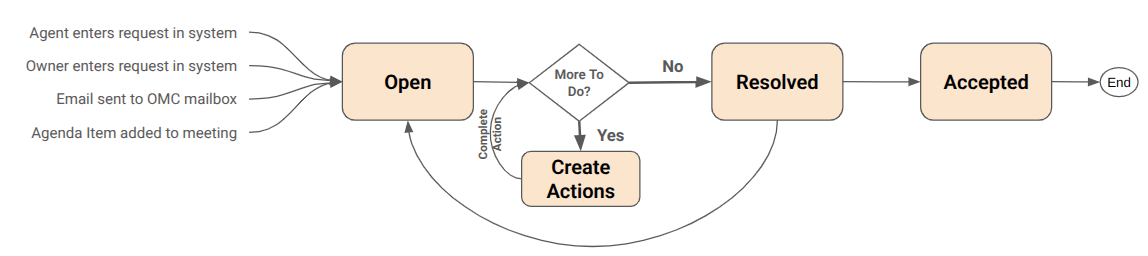
For example: a contact reports a broken roof slate. You cannot close the request yet because the roofer has not been out, but you do not want it sitting unattended. You create two actions: call roofer — due today and confirm repair completed — due next Friday. The request stays open and planned, the actions keep it on your radar, and once both are done you close the request as normal.
Actions have a title, a planned date and an owner. The planned date of the earliest uncompleted action drives the request’s action status (Planned or Overdue), so overdue actions surface automatically on the dashboard. See Request Status for the full status breakdown.
Closing Requests
Section titled “Closing Requests”The two kinds of request also close differently. A case closes by telling the people following it what happened, then sits at Resolved for a week before being accepted automatically. A work order closes silently — you placed it, so there is nobody waiting to hear — and stays at Resolved until you accept it yourself, which is how you record that the supplier’s invoice has arrived.
Closing Requests covers both, including raising the invoice or an accrual as you accept.